Showing posts with label review. Show all posts

Friday, March 18, 2016

Small is beautiful, isn't it? Antec ISK 600M review

Today I'll try to share something with you about another case I had in my hands lately. As the title says - it was an Antec ISK 600M. It's a micro-ATX Cube case, measuring 290mm (H) x 272,6mm (W) x 340mm (D), comes in stylish black colour.


Exteriors

Antec decided to play safe when it comes to the front panel. It's made of plastic imitating brushed aluminum, and a mat bezel with front interface on it. There's also a place for slim optical drive.


ISK 600M front panel

The front interface is quite conventional. On the left side of it you will find one USB 3.0 port, audio and mic jacks and one USB 2.0 port. The blue USB 3.0 can be also connected as USB 2.0, as the cable has two type of connectors and attached instrucions saying to use only one of them. Sadly, USB 2.0 is on a separate cable, which means that with some motherboards (especially smaller ones) you won't be able to connect both of those USB front ports.

Left side of the front interface

Right side of the front interface is composed of Reset and Power buttons, hidden underneath pieces of flexible plastic, which has to be pushed in to use those switches. This construction prevents the user from pushing them accidentally, but I’m not sure about durability of those plastic plates. 

Right side of the front interface

A blue LED strip is hidden underneath the front panel bottom side, making surface under the case light up with aural effect. You will have to connect it to an external power though, using a molex plug. 

On the left side of the case you will find air vents for the front 140mm fan. Additionally you can observe the height the case stands from the surface and it’s standard feet. There’s also a cutout that allows a GPU better airflow.

Left side of the case

The right side of the case is very similar, but the airflow cutout is longer. Both panels and the top of the case are actually a one sheet of steel.

Right side of the case

On the back you can find pretty standard cutouts, although they tell you a bit about how the interiors of Antec ISK 600M are arranged. First of all, motherboard will be mounted horizontally, GPU and other expansion cards vertically. There’s room for a full ATX power supply on the floor, protected with dust filter made of fine mesh strapped on a plastic frame.

Back side of the case

There’s also some rubber grommets for custom liquid cooling solutions, additional air vents and one 120mm exhaust fan. As you can see, there are four back slot covers that can be reattached, that are hold in place with additional metal frame. It’s quite good system, allowing you to easily remove or put those covers back in place.

Back side of the case

Bottom side won’t surprise you too – there’s a dust filter for the PSU, some mounting cutouts and LED strip in the front. As you can see, front feet are removable, back ones are glued on. 

Bottom side of the case


Interiors

When you take the sheet of steel covering both sides and the top of this case, you will see two chambers of the Antec ISK 600M. Bottom one, a smaller one, will hold your PSU and up to three 3,5” drives in a bay. There’s a place for additional 80mm fan that will take the hot air from those drives and exhaust it on the back. There’s a lot of space for cables here, and you will be able to connect those drives easily. The PSU sits on a dampening foam strips.

Bottom chamber

In the main chamber you will mount rest of your components. The case is compatible with Micro-ATX and Mini-ITX standard motherboards. You will be able to put a GPU as long as 312mm and a CPU cooler up to 175mm height. The top side of the case holds a bracket for up to four 2,5” drives and a slim optical drive.

Interiors

Left side of the interior has mounting holes for two additional 120mm fans, but mounting both of them means you won’t be able to use that top drives bracket. The front panel is easily detachable with plastic latches on both sides. The front fan is protected with loosely grilled metal plate of the front side, but there are some cutouts and space to run some of your cables to the top drive bracket.

Removed front panel

Both case fans have manual RPM controllers. I was able to put the exhaust fan controller outside of the case using those rubber grommets, but there is no way to get access to the front one from the outside of the case, which is a bummer.
Więcej wnętrza

Summary

Antec ISK 600M is a very interesting, mid-range case offering nice form-factor and a lot of space inside to mount some more powerful hardware. As far as main cons of this case come, it might be impossible to use both of those front USB ports at the same times with many smaller motherboards. The mounting system for additional side fans could be done smarter to allow use of the top drive bracket. Also, the front fan could be placed better. There are a lot of space under that front cover, but that fan is exactly on the same width as those air vents, and that won’t give you great airflow in there. Those fan RPM controllers are a bit weird too, it’d be better to include a simple fan controller on the front side of the case and connect both those fan to that. 


As for the pros, the build quality is really great for this price point – it’s very stable, doesn’t wobble and still quite light. Expanding options are great too. You can mount six fans overall in this case! I think that you could put a CPU AiO cooler in there, not only with 120mm rad, but a 240. slim one too. There’s also enough space in both compartments to run a custom loop in there, especially if you go with the smallest motherboards. It could use some more cable management tie points, because I found only two of those, and they weren’t very useful with the small board I used for this build. 


Personally, I would give Antec ISK 600M a solid 4+/5 score, especially thanks to the price of this case. It’s definitely a very nice case for someone who wants to go for smaller form factor, but still would like to have a lot of space for larger components and a lot of space to work with. Good job, Antec! :)

A rig built in Antec ISK 600M from the top view :)

Right side of it


And left side

The case used for this review was provided by a reader that I built this rig for :)

Friday, February 12, 2016

Fractal Design Define S - Define series facelift?


This week I had inexpressible pleasure of building a rig in Fractal Design Define S case. By the pleasure I mean that I'm probably a Fractal Design fanboy. My rig sits in a Define R4 ;)


Exteriors


Entire case measures 233 x 465 x 533mm and you can fit up to ATX motherboard in there.

On the front you will find a well known Define series front panel with a blue LED cutout. Define S don't have any kind of door here though, like Define R has. There aren't any 5,25" drive bays on the front, but you can mount up to three 120/140mm intake fans or a radiator up to 360mm. The whole front is covered with a fine dust filter. In stock you will find one Fractal Design Dynamic GP14 140mm fan here. Side panels are very sturdy and thick, made of steel, with some sound dampening material. You won't find that on a panel with a window of course.


Dynamic GP14

Let's take a look on the front interface, located on the top side. It consists of two audio jacks, reset button, large power button with power/drive LED and two USB 3.0 black ports. You won't find two additional USB 2.0 ports or fan controller, which could be seen in Define R4/R5. Drive LED blinks with other tone of blue to indicate the system drive status. 

Front interface

Next, behind the front interface is ModuVent system, which is a set of three toolless panels with dampening material, easy to detach, that covers space for top fans and/or radiator. You will be able to fit up to three 120/140mm fans or one 180mm fan with a 165mm hole spacing. As for the radiators, you can slap a pretty big ones there - 420, 360, 280, 240, 140 or 120mm. For 420, 280 and 140mm rads the thickness clearance is 55mm for rad+fans. Unfortunately, when you take the ModuVent pieces off, there is a large unfiltered gap if you mount 120mm fans/rad. 

ModuVent system

Back of the case can only surprise you with a little in air ventilation depratment - less than in other Define chasis. It's rather standard looking otherwise - reattachable slot covers, space for a PSU isolated from the back of the case and it's floor with rubberized feet, another GP14 1400mm fan and steel, toolless screws for side panels, which are attached to it permanently, so you won't loose them that easily.

Back of the case

Let's look under the case. Here you will find well known Define series elements - ruberrized feet, long dust filter for both PSU and a floor mounted fan. There are some mounting points for custom loop elements too. You can mount a 120/140mm fan or 120mm rad here. There's also a handle to remove the front panel cover.

Underside

The side panel windows is colorless, very rigid and quite large to show all of your parts inside, including custom loop components. It reflects light very well too ;)

Side panel with window

Interiors


Inside Define S looks familiar at the first glance, but then you spot the lack of 5,25" bay brackects or 3,5" cages for that matter. But you will find a lot of space with mounting points for liquid cooling components, such as pump and reservoir. It's possible thanks to bigger MOBO backplate, that spans across the whole case now. 

Define S interiors

The MOBO backplate has a twist too, it's bent a little to make some additional space on the other side. It affected the size and place of some cable grommets. Frankly, the interior looks like it has been dismantled. Lets see the other side. 

Cable grommets

Here, Fractal engineers put some cool stuff. You can mount two SSDs behind the mobo tray, but check out that clever 3,5"/2,5" three mounting points on the left! Also - velcro straps for cable management are a good addition.

Magic happens behind the scene

Innovative 2,5"/3,5" mounting points

Summary


Define S, at the first glance, is very similar to it's more expensive brother - Define R5, or it's older brother - Define R4. But this chasis is a little bit different than those two, and you have to make sure to know them before you buy this case. For a regular PC user it's a stripped down and less expensive Define R5 counterpart. It lacks the fan controller, 5,25" drive bays, has less space for drives, underside dust filter is shorter and harder to access. But this chasis is a real treat for custom loop enthusiasts. There are a lot of additions that support liquid cooling in a standard ATX case for around 100 USD. You can easily mount two large rads, nice high reservoir with a pump and still have enough space for some HDD and SSD without making the chasis very big. 

Additionally you will find many well known Fractal solutions with their reliability and quality. The case is mostly made of steel, which makes it very sturdy and stable. Plastic elements don't creak or squeak and everything fits just perfectly.

As with Define series - building a rig in this chasis is just a pleasure and the effect is usually a great looking rig. This time I will put two ratings here: if you are planning on building a custom loop or throw some AiOs in there, then for this price this is clearly a 5/5. But if you plan to cool your parts with air, then lack of 5,25" bays or fan controller and only 2 front side USB ports might be an additional issue, But even taking that into account, this is still a solid 4+/5 case for me. 

That's how a regular rig looks like in Define S :)


The case used for this review was provided by a reader that I built this rig for :) 

Friday, February 5, 2016

Mouse from China - 1STPLAYER Fire Dancing Gaming Mouse review

Most of us, europeans, tend to think that Chinese produce only knockoffs of well known brands. What if I told you that they do have their own brands, that sell their own, original products? Feel free to check out this review if you're curious! 

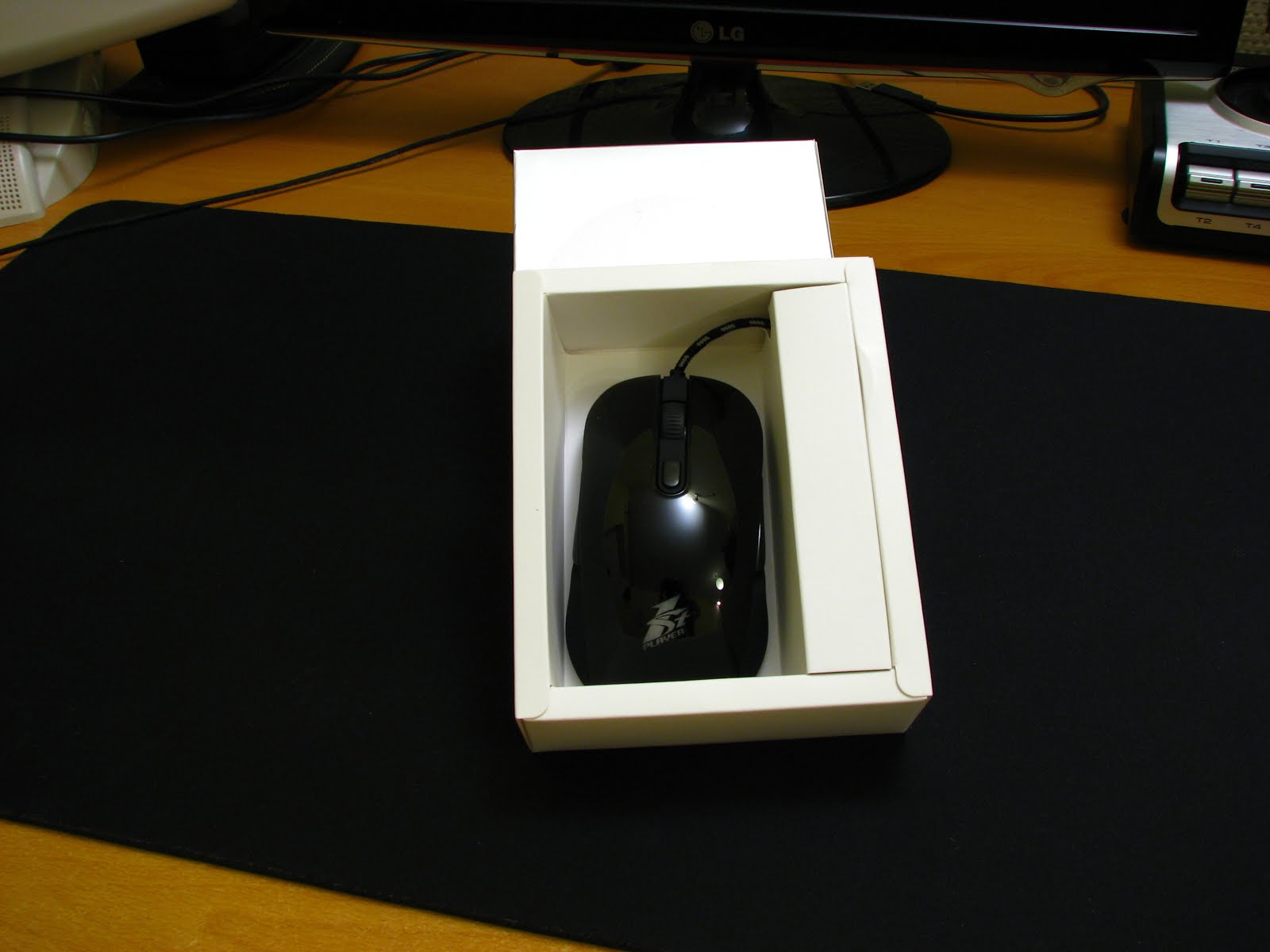
Stylish 1STPLAYER Fire Dancing Gaming Mouse box

Specs and pricing


You can get this mouse on US Amazon store, although it will ship from China, for free. As I'm writing this review, it's on sale for 20 USD. 

Let's look at the specs that 1STPLAYER is claiming, as they look quite good for 20 USD:

- Mouse is symmetrcial, so no worries for lefties; 
- DPI up to 4000;
- It has Avago 3050 sensor nad Huano microswitches (only main buttons);
- Braided cable, 180cm (6ft) long; 
- 20G acceleration;
- Teflon feet;
- Polling rate - 1000Hz;
- Weights 119g (4.2 ounces);
- Wymiary 10,7 x 6,6 x 3.6 cm (4.7 x 2.6 x 1.4 inches);
- You can get it in white or black; 

The most interesting fact about those specs is that there's an Avago 3050 sensor, 4000 DPI and 1000Hz polling rate. I'll spoil a little - Avago 3050 has only 2000 hardware DPI, which means that anything above that is interpolated.

Package


The mouse is packed in a stylish, silver cardboard box. On the face of it you can find the name of the mouse and just barely visible 1STPLAYER spider logo. There is some technical data in chinese and english on the back of the box. 

Simple package
The mouse is not particularly secured in the box, but it's sized in a way that it won't bounce around in it. Under a small piece of cardboard you can find the braided cable, secured with a velcro strap. There's a small pamphlet containing a few technical details, information that it will work without dedicated drivers and that you can get the dedicated software on 1STPLAYER website.

Build quality and looks


Fire Dancing looks like a solid piece of hardware. There's no gaps to be found anywhere, it doesn't crunch or creak and the plastic material used looks durable. Sadly, 1STPLAYER decided to use very smooth, reflective and rigid plastic on the top surface. As a result, mouse reflects light so much, that you can see my camera's reflection in some of my photos :) Side panels of the mouse are also made with a rigid plastic, but those are matt. On the top of the mouse you can find two main buttons with microswitches, backlit (from the sides) scroll with a button, a switch for DPI/lightning settings and backlit 1STPLAYER logo. 

Fire Dancing out of the box
As I have already mentioned, the profile of this mouse is symmetrical. Interestingly, you can find an identical, long side button on both sides of it. Cable braiding is very rigid and black/white. It is, by far, the least solid looking part of this mouse, but that stiffness saved the cable from folding too much in the box. 
The underside
On the underside you will find the manufacturer's logo, model name, serial number and a few additional information in chinese that I can't read. There's also a quality sticker and four large teflon feet. The feet seems stiff, hard and quite smooth. 

The lightning
After you connect the mouse to USB port in your PC, the mouse will install instantly and will light up in red. If you won't move it for a bit the light will fade out and come back slowly. Color corresponds with DPI settings, but you won't found any color-coding key in the pamphlet or underside of the mouse. By default, it has four different DPI settings, which are color-coded from the lowest to the highest DPI, in order: Red, Blue, Green, Purple. All those colors are very vivid and shows the 1STPLAYER logo perfectly. 

Software


I found and downloaded the dedicated software from the manufacturer's website and it installed just fine. Unfortunately it doesn't detect the mouse, showing a simple Windows error prompt. Any attempts at opening the software, accessing it's settings fails. 1STPLAYER employee told me that the driver lacks some files and he will send me a working version via e-mail. Sadly, he had some issues with sending that 3mb file and I didn't get the driver to work. At the time of writing this review I couldn't use the dedicated software for this mouse. If I ever manage to make it work, I'll post an update here.

Tests


I decided to run some standard mouse tests, to verify some of the mouse specs claimed by 1STPLAYER and to assess the actual capabilities of this hardware. Windows mouse acceleration was disabled during those tests.

I've started with checking the data sending rate from the mouse to a PC. I remind you that manufacturer claims 1000Hz, so we should get a 1ms delay. 

Mouse Rate Checker test
As you can see on the image from Mouse Rate Checker above, Fire Dancing only achieves scores around 500Hz. Scores around 450 and 550Hz are errors due to this method's imperfection. So we've got a 2ms delay. It's a quite good score for a mouse at this price point, but 1STPLAYER claimed the 1000Hz polling rate. I'll be honest on that - my knowledge about this topic is rather basic, but I belive that the manufacturer doesn't tell us the whole truth in this case - sensor is actually sending data at 1000Hz rate, but it sends it to a microcontroller built in the mouse, and then it sends it to a PC with a 500Hz rate. I know that A4Tech had something like that going on with some of their products. If you have any kind of additional insight into this matter - please, share it with me in the comments section :) 

Next thing to test out was interpolation - Avago 3050 sensor has hardware sensitivity capped at 2000 DPI, so that means there has to be some kind of interpolation to get up to 4000 DPI with this mouse. 

Vmouse Benchmark interpolation test results

As 1STPLAYER isn't stating the DPI for each setting, I used the colors that corresponds with each of them. Testing with Vmouse Benchmark shows, that the two highest settings are clearly using interpolation - you can see this as those gaps in 1px wide lines I slowly drew. With higher DPI settings, Fire Dancing just looses pixels. 

Następnie przeszedłem do pomiaru DPI, także z użyciem Vmouse Benchmark. Pomiar jest mocno orientacyjny, ze względu na to, że wymaga bardzo precyzyjnego ruchu myszką na odległość ćwierć cala. Umieściłem suwmiarkę w najszerszym miejscu myszki, wyzerowałem, po czym ustawiłem ćwierć cala i przesuwałem myszkę między ramionami suwmiarki. 


DPI measurements - DPI is bolded

As you can see, the mouse gets up to 5000 DPI. If I performed the test well enough, then Fire Dancing ha some heavy interpolation going on.

Another property we can check is looking for acceleration. The easiest way to test it is to lanuch a FPS game. I chose Far Cry 3, and disabled the in-game mouse acceleration. To run the test: point the gun as low as you can, shoot once to mark the spot. Then move the mouse slowly in straight vertical line to make a full 360* turn. When you get back to the starting point (bullet mark), move the mouse back to the exactly same point on your mousepad, but this time do it fast. 

Acceleration test in Far Cry 3
As you can see, Fire Dancing has some light acceleration, as we didn't move back to the same spot, but the manufacturer stated that in data sheet. Results are quite solid for low DPI settings. The higher the DPI goes, results get worse. 

Last, easy to run, but hard to interpret, test is jittering test. Basicaly, jittering is an effect that makes your cursor to not move in straight line, even if your mouse goes perfectly in straight line. It looks like a jumpy cursor, going all over the place. The easiest way to test this, is to show your graphic editing software l33t skillz in MS Paint ;) I did this test on all DPI settings.


With higher DPI you can see some jagging in the lines - zigzags, when you try to draw a smooth line. The effect is small, but you can see it with Fire Dancing. 

Performance and experiences


As I started to use and game with Fire Dancing, I had some issues with adjusting. I've been using mice with a very particular profile for a few years now, so it took me a while to get used to this one. In this adjustment period I found out that my concerns confirmed - smooth, reflective material used on the top and the one on the sides isn't helping with control at all, and you can see all kinds of finger marks on it after just few minutes of using it. 

The surface hasn't scratched yet, but I got this mouse just couple of days ago. I fear that scratched, smooth reflective surface won't look very appealing. On top of that, the hard plastic made my palms hurt during the first few hours I was gaming with Fire Dancing. Two days later it stopped to give me that discomfort, but I didn't had that kind of issues with mice coated with softer plastic or rubber. 


I really like the main buttons. For this prie point, they are very pleasant to use, travel distnace is very low, and I like the sensitivity - I didn't have any issues with random clicking or not getting response from those buttons. 

Scroll looks solid too - it's smooth but you can feel the scroll distance clearly. The button built in it is comfortable to use, profiled nicely. I did have some random scrolling, but as I get adjusted to the mouse it stopped. 

Side buttons are another story entirely. There are two of them one on the left and other on the right side. The size and shape of those buttons are on the plus size for sure - they're wide and really long so you shouldn't have any issues with reaching them. Even I don't have trouble reaching them with my short fingers ;) The issue I had though is that they have really low key travel distance and low actuation force, so it's easy to just push them randomly. On top of that, when you browse the Interwebz, you usually can use two side buttons as Back & Forward keys. The one in the front is usually a Forward button, and the one close to the back is Back. In Fire Dancing the left button is Forward and the right one - Back. It makes it hard to use it at first, as it's counter-intuitive. 

Teflon feet in Fire Dancing seems to have a lot of friction on my QcK mat, but that's because of the mat itself and large feet size on the 1STPLAYER mouse. They are decent on wooden table. 

Summary

1STPLAYER Fire Dancing Gaming Mouse is a piece of hardware, that falls into low-mid end category, and should be rated as such. 

Pros:
+ Durability of used materials and the final product; 
+ Vivid lightining colors; 
+ It has side buttons on both sides for righ and lefthanded gamers; 
+ Quite good parameters-to-price ratio; 
+ Solid main buttons and scroll;
+ It's a new and not that well known brand in europe, which might be an advantage for someone who likes uniqe hardware; 

Cons:
- Side buttons are too easy to push randomly; 
- Can't run the dedicated sotware, no access to additional options (such as lightning and DPI settings); 
- Smooth, hard and reflective surface on the top; 

Due to some understatements in specs of the mouse (polling rate, DPI), not working software and not-so-comfortable sie buttons, I can give this mouse score of 3+/5. If I can make the software to work and it has all the options gamers are used to have, I could easily see this as 4/5, but for now, I can't rate it higher. 

You also should pay attention to the pricing of this mouse. Especially if you don't earn your money in USD/GBP/EUR. I wouldn't pay more than 20 bucks for this mouse, including shipping (which is currently free - big kudos to 1STPLAYER for that!). If the mouse goes for 30 USD, you should look at other offers. 

Mouse used in this review was bought during sale AND with a discount code from 1STPLAYER. 

Friday, January 29, 2016

Even more QcK surface - user experience with SteelSeries QcK XXL

I have been using mousemat - as it's hard to call something sized 900x400x4mm a mousepad ;) - from the title of this post for a month now. Today, I'd like to share my insights from the past month with you.

The name of SteelSeries mousepads - QcK - should indicate that it's a speed type surface, which means that your mouse will glide with the least possible friction. Despite its name, QcK surface is rather a "slow", control type, which will allow you to have better control over your mouse and better precision. It's not a drawback, but depending on your gaming style, favorite mouse and types of games you play - it will matter. Initial glide on QcK has some friction to it, but after that it's rather smooth, which allows higher precision movements.

The mousemat is, sadly, not braided, but the underside looks very solid and it adheres to my varnished desk well enought, that if I want to move it, I have to pick the whole thing up from the table top.


From my observations, the mat soaks liquids very quickly, which might be an issue for anyone whose hands get sweaty during gaming. QcK will accumulate sweat, collect dirt and germs, and the surface will loose some of its parameters in those spots. As it has some rough texture to it, QcK attracts dust easily. I didn't have a chance to wash it in washing machine (or use other methods for that matter) yet, but other users said they were able to do it without any issues, if you use a protective bag so the edges won't shred. 

This mousepad is 4mm thick and it's quite hard. It's hard enough that your mouse won't have any issues even if you tend to push it firmly, but at the same time is soft enough to rest your wrists on it while gaming or typing :) And when you take a break between matches of your favourite games - it just begs you to lay your head on it and doze off :D


The size of this thing will allow for a lot of comfort when it comes to space for your mouse. You can easily put a keyboard on it and still have more than enough space to game with low DPI settings. 900mm in case of smaller desks is usually the whole width of a table top, so be sure to measure if you can fit it on yours :)

Personally I'm delighted to use QcK XXL. It fits my desk space perfectly, allows me to comfortably change positions during gaming sessions without moving it and my banged up keyboard without rubber feet won't move an inch anymore ;)


If I was to assign SteelSeries a score for this product, it'd be solid 4+/5. The biggest drawbacks are: lack of braiding on edges and the way it absorbs water. I only hope I will be able to clean it easily and that lack of braiding won't make it less durable. I strongly recommend QcK XXL if you're looking for a large mousemat for your battlestation :)

Mousemat has been bought at X-kom store and gifted to me by the Wife ;)

Friday, January 22, 2016

SilentiumPC Gladius M35 Pure Black - review


Today I'd like to share my insights about building a rig with a very interesting SilentiumPC low/mid-end case. As the title of this review says - I want to share a few words about Gladius M35.


Exteriors


M35 dimensions are as follows: 486×502×200mm, in mATX/ATX standard. The front panel holds only two 5,25" bays and dust filter mesh. Behind that mesh a space for two 120 or 140mm fans can be found. The case comes with one Sigma Pro 120mm fan (1200rpm). Side panels are smooth and feels quite rigid for a case in this price target. SilentiumPC claims that they used SECC steel, and it really shows. Panels are about 0,7mm thick.


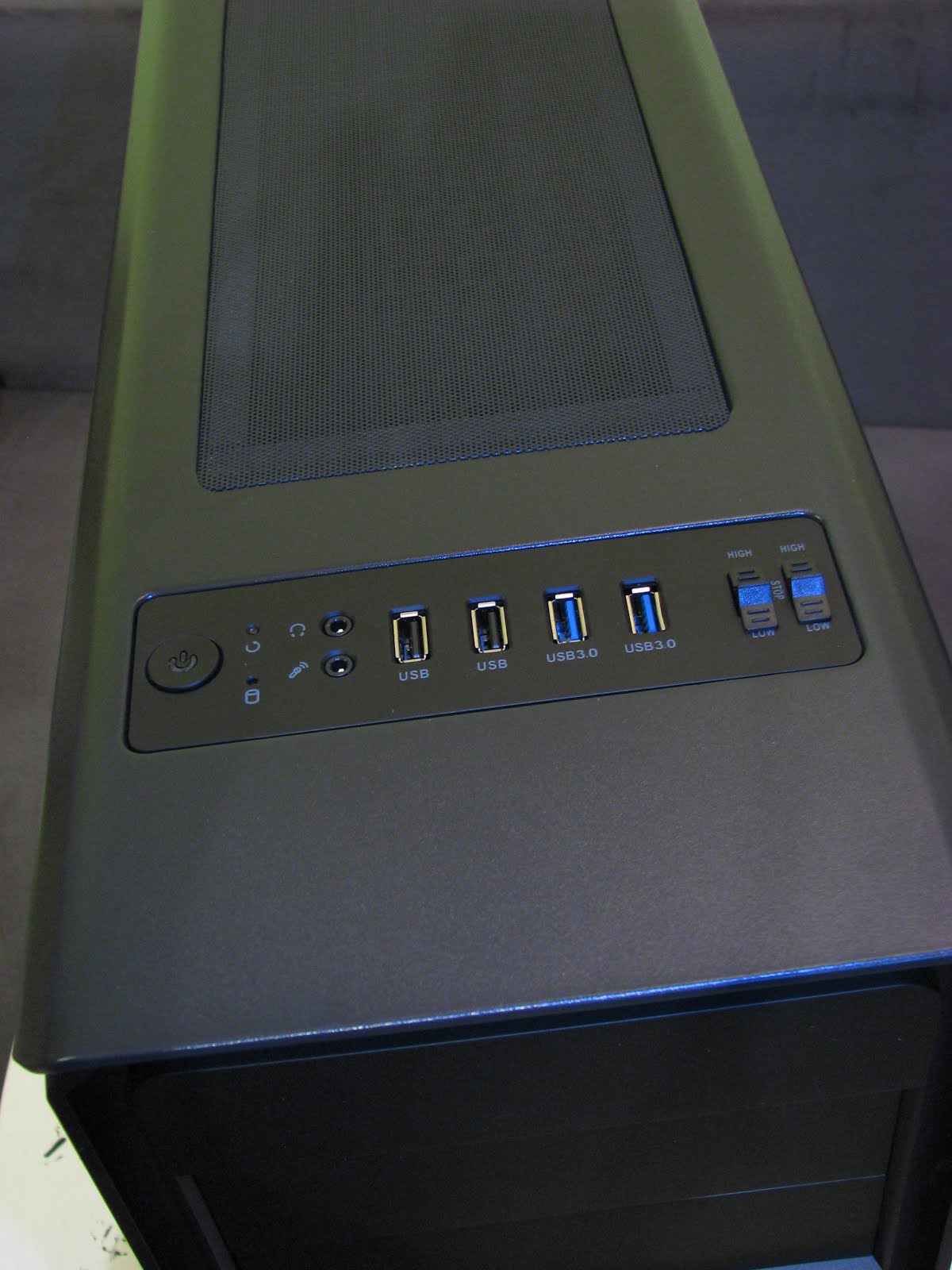
Top side of the case holds the front interface, from the left side: a power button with white LED, small reset button, HDD activity LED, headphones and microphone jacks, two USB2.0 and two USB3.0 and two three-levels fan controllers. A small but appreciated detail are rubber cover caps for all those connectors (not shown in the picture), which will prevent the dust from gathering in them. 

Front interface

Behind the front interface we can find a top dust filter made of flexible mesh attached with magnetic strips. Under the filter is mounting space that could hold 240/280 rads and/or 120/140 fans. 


Top side dust filter

The back of the case is rather straightforward. There is a lot of perforation to improve airflow. Back fan is also a Sigma Pro 120mm. In theory you could also mount a 120mm rad in there too. Unfortunately there isn't a 140mm fan option in here. Luckily , SilentiumPC decided not to include holes and grommits for external radiators. Side panels are screwed with toolless screws that aren't so much toolless in the end. Included screws are made of metal, but are put in plastic handles, and you will have to use a screwdriver to screw them tighter.


Back of the case

Let's look under the case. You can find a standard low-end dust filter here, same as other cheaper SilentiumPC cases or Zalman ones use. Plastic feet have pieces of rubber glued on them, which will stop vibration and protect the surface from being scrached.


Under the case

Interiors


Interior of Gladius M35

The interior of Gladius M35 can be quite a shock if you look at the price of this thing. The first thing that catches the eye is a shroud covering the PSU and two 3,5" drives. Additionaly you can find two 5,25" bays, but unfortunately you can't mount an optical drive in the top one, as front panel cables will block it, so reserve it for some other hardware. In M35 you can also mount three 2,5" drives - two near the front side panel and one in the back of motherboard tray. 

Front side interiors
Back side slot covers are screwed in with the same screws as side panels. The case is equipped with two fan controllers. Each of those will need a molex power plug, and can accommodate up to three 3pin fans each. There's a lot of space behind the motherboard tray, enough to route a 24pin ATX power cable, but you can forget about putting one cable over another. Luckily there are a lot of points where you can ziptie your cables to the tray. The front side can accommodate 120/140, 240/280 and 360mm rads, but to mount a 360 one, you will have to remove 5,25" cage. You won't be able to put a thick rad in there too, same as on the top side. 

Behind the motherboard tray

The PSU shroud is smooth and well built. Unfortunately it's riveted to the case floor, so you won't be able to remove it easily. 


Space under the PSU shroud

Space under the shroud is a bit limited. I was able to put a fully modular OCZ ZT Series PSU, but just barely, and it's rather a standard sized one (150 x 86 x 175mm). I'd suggest you to plug all your cables to the PSU and mount it afterwards. Also, mounting is not a breeze with that shroud in the way. PSU is isolated from the case floor with rubberized feet, but nothing stands between the PSU and back side of the case. 

Summary


Gladius M35 is a borderline low/mid-end case. For it's price it's hard to find other case that will have as many perks as this one: steel panels, PSU shroud, two fan controllers, enough space to mount 5 drives and possibly enough space to mount two 240mm rads or reattachable back side slot covers. There are a few details that are clearly there to save SilentiumPC some money in production costs - those toolless screws and riveted PSU shroud to name only two. There still are ways to improve, but when you consider the price of this case, it makes very popular and just slightly cheaper Zalman Z3 Plus case really pale. If you're in the market for a cheap case, then SilentiumPC Gladius M35 is definately something to be considered :)


Honestly I can rate Gladius M35 with a strong 4+ in 5 points scale.

The case used for this review was made available by a reader I built a rig for. 


A rig built for one of my readers :)